BestQRs Documentation
Everything you need to build powerful, dynamic QR campaigns.
The Basics
Understanding how QR codes actually work — and why dynamic codes are the only serious choice for any printed campaign.
Static vs. Dynamic QR Codes
A QR code is a machine-readable encoding of a text string. The critical difference between static and dynamic codes is where that string points.
| Feature | 🗿 Static QR Code | ⚡ BestQRs Dynamic Code |
|---|---|---|
| What it encodes | Your final destination URL — hardcoded | A short tracking URL: /q/abc/xyz/ |
| Change destination? | ✗ Impossible — must redesign & reprint | ✓ Anytime from the dashboard |
| Scan analytics? | ✗ Zero visibility | ✓ Device type, source, timestamp |
| Smart routing? | ✗ One destination only | ✓ Route by device, day & time |
| Access controls? | ✗ Always public, always on | ✓ PIN, scan limits, expiry dates |
| Best for | Quick, disposable personal use | Any professional or printed campaign |
The Interceptor Architecture
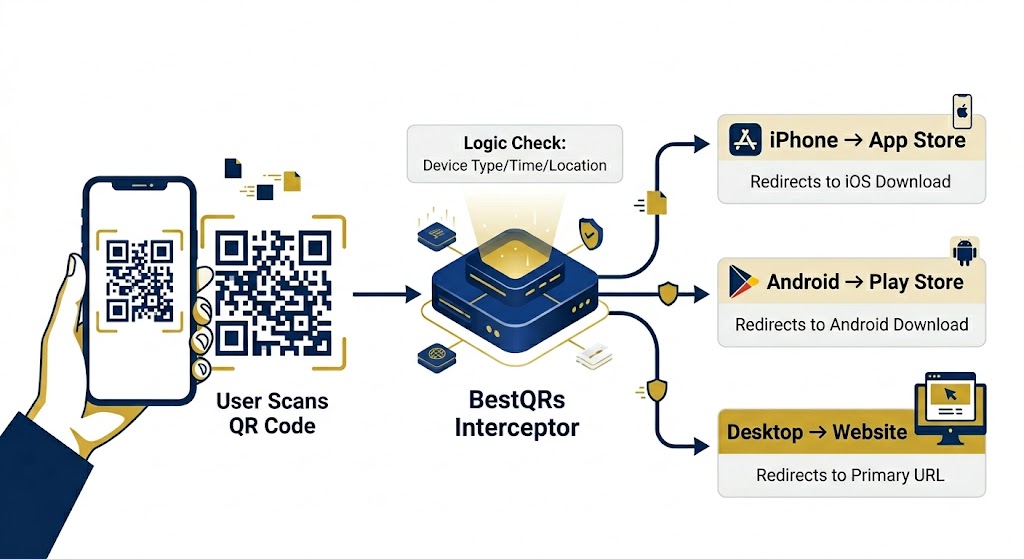
When you create a QR code on BestQRs, we encode a short tracking URL — never your final destination. Every scan hits our Interceptor, which evaluates your Smart Rules in real-time using Redis, then performs a near-instant redirect. Your printed code stays valid forever, even as destinations change.
How every scan flows through BestQRs
Because the QR code always points to /q/abc/xyz/ — never the final URL — you can print 10,000 brochures today and change where they land tomorrow, without reprinting a single sheet. This is the single biggest advantage of dynamic QR codes for any marketing campaign.
Design & Branding
A well-branded QR code builds trust before the user even scans it — and dramatically improves scan rates. Here's how to get the design right.
Pattern Styles
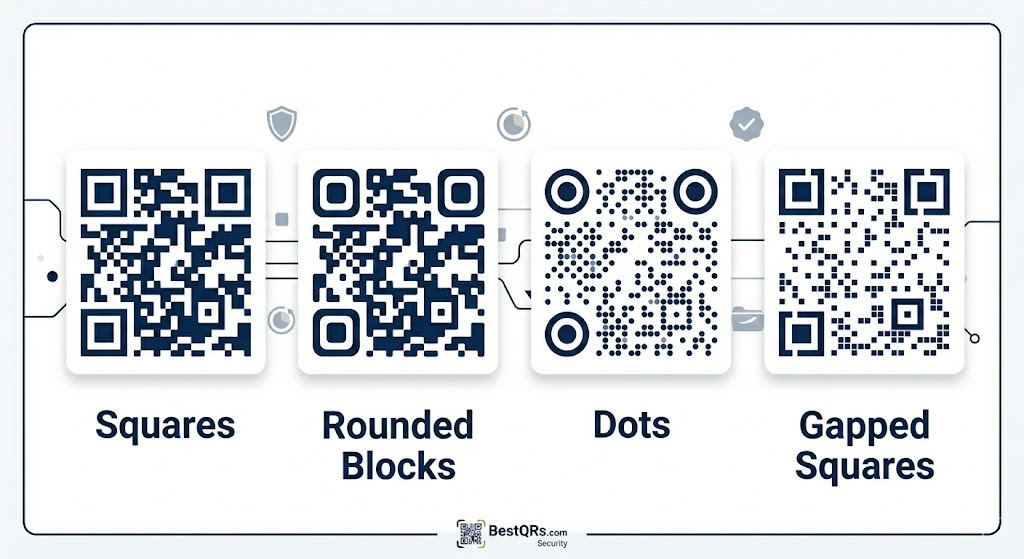
BestQRs supports four module-drawing styles. All are equally scannable when contrast is sufficient — choose the one that fits your brand.
Squares
The classic standard. Maximum compatibility — ideal for very small print sizes and laser engraving.
Rounded Blocks
Softer, modern feel. Excellent for lifestyle brands, packaging, and retail displays.
Dots / Circles
Unique, premium aesthetic. Popular for menus, wine labels, hospitality, and luxury retail.
Gapped Squares
Light, airy grid with visible breathing room. Works beautifully on coloured backgrounds.
Contrast Safety
A QR scanner works by detecting the difference in light reflected between dark modules and a light background. Too little contrast and phones fail to scan — especially in bright sunlight or on budget cameras. BestQRs enforces a real-time contrast check using the WCAG luminance formula.
Black on white. The gold standard. Guaranteed to scan on every device, indoors and outdoors.
Navy on cream. On-brand and reliably scannable — a great option for premium printed materials.
Mid grey on light grey. Below the 3:1 minimum — will fail on many phones, especially outdoors.
White on near-white. Invisible to scanners. Never choose similar light tones for QR and background.
The QR spec assumes dark modules on a light background. Inverting (light modules on a dark background) works on modern iOS and Android but can silently fail on older or budget devices. If you must use a dark background, push contrast above 6:1 and use error correction level H (the default in BestQRs).
Center Logos & CTA Frames
Two branding tools that boost both visual recognition and scan rates. Used together, they can increase conversions by over 80% compared to a plain, unbranded code.
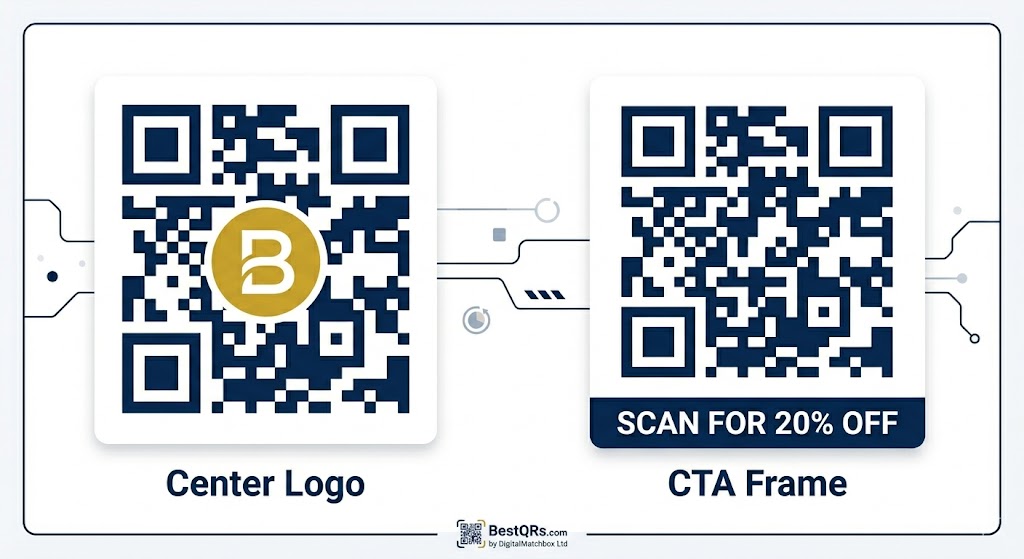
Center Logo
Embed your brand logo in the center of the QR code. BestQRs uses 30% error correction (level H) — meaning up to 30% of modules can be covered and the code will still scan perfectly.
- Best format: square PNG with a transparent background
- Logo occupies roughly 20% of the total code area
- Keep it simple — fine detail compresses poorly at small sizes
- Avoid logos with very thin lines or low internal contrast
CTA Frame
Add a colored banner below the QR code with a short call-to-action — "SCAN ME", "VIEW MENU", or "GET 20% OFF". A clear CTA tells users why to scan before they decide to.
- Max 30 characters — legibility drops fast at small print sizes
- Frame color and text color are independently configurable
- Font size 12–64px — test at your exact print dimensions
- Use all-caps for maximum impact on signage
Imperative verbs with a benefit consistently outperform generic labels. "SCAN FOR 20% OFF" outperforms "Discount Available" by a wide margin. Lead with what the user gets, not just what they should do. Short, bold, benefit-first copy wins every time.
Smart Redirect Rules
The most powerful feature on BestQRs. One printed QR code — infinite possible destinations, automatically routed by device, day, and time of day.
Mixed Rule Logic
Each QR code can have multiple ordered rules. When a scan arrives, BestQRs evaluates rules from top to bottom using strict AND logic: a rule fires only when every one of its set conditions is satisfied simultaneously. This is called "fail-fast" — if a single condition fails, BestQRs skips immediately to the next rule.
User-Agent (UA)
Which device or browser is scanning. Leave blank to match any device.
Day of Week
Which days the rule is active. Leave unchecked to match every day.
Time Range
The active time window. Leave empty to match any hour.
Rule evaluation — fail-fast AND logic
User-Agent Cheat Sheet
The UA field is matched as a case-insensitive substring of the browser's full User-Agent string. You don't need the full string — just a unique identifying word. Here are the proven values:
| Target Device / Browser | UA String to Enter | What It Matches | Common Use Case |
|---|---|---|---|
| 🍎 iPhone (iOS) | iphone |
All iPhones — Safari, Chrome, Firefox on iOS | Route to Apple App Store |
| 📱 Android devices | android |
All Android phones and Android tablets | Route to Google Play Store |
| 📲 Any smartphone | mobile |
Most smartphones (typically excludes tablets) | Show mobile-optimised landing page |
| 🍎 iPad | ipad |
iPads specifically (iPad OS sends "ipad") | Tablet-optimised layouts or PDFs |
| 📲 Samsung phones | samsung |
Samsung Galaxy devices using Samsung Browser | Samsung Pay or Galaxy-exclusive promos |
| 🪟 Windows desktop | windows |
Windows PCs accessing via QR scanner app or webcam | Download Windows software or EXE |
| 🍏 Mac desktop | macintosh |
Macs using Chrome, Safari, or Firefox | Download Mac software or DMG |
| 🦊 Firefox browser | firefox |
Firefox on any platform (mobile or desktop) | Privacy-conscious audience targeting |
| 🌐 All devices (catch-all) | Leave blank | Matches every device without exception | Universal fallback rule at the end of your list |
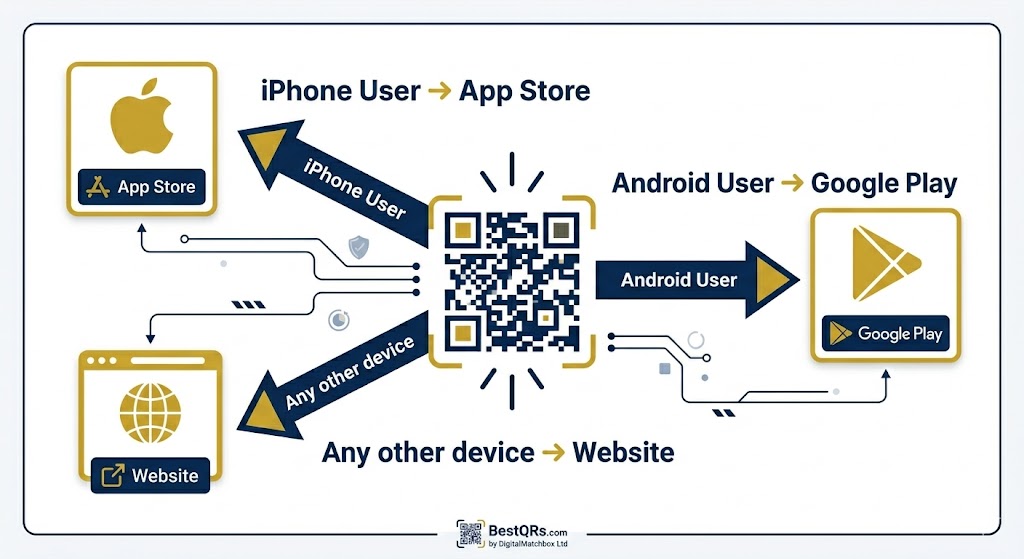
The most popular Smart Rule pattern across all BestQRs users:
Rule 1: UA = iphone → Your Apple App Store URL
Rule 2: UA = android → Your Google Play URL
Fallback (primary destination): Your website or app landing page
iOS users get the App Store, Android users get Play Store, and desktop users or any other device lands on your website — all from one QR on your packaging.
Days of Week & Time Ranges
Rules can be restricted to specific days of the week and a time window. All evaluation happens in the timezone set in your Account Settings — not the scanner's timezone. Set this correctly before configuring time-based rules.
📅 Days of Week
Check the days you want this rule to be active. The M–T–W–T–F–S–S checkboxes in the designer let you pick any combination. Leave all unchecked to match every day.
Blue = Mon–Fri, Grey = Sat–Sun. Tick whichever days apply to your rule.
🕘 Time Range
Set a 24-hour Start and End time. BestQRs also supports overnight ranges where the end time is earlier than the start.
09:00
→
17:00
Business hours
11:30
→
14:30
Lunch service
22:00
→
06:00
Overnight (wraps)
Real-World Use Cases
Restaurant Menu Switcher
One QR code on every table — automatically serves the right menu throughout the day.
- Rule 1: Mon–Fri + 11:00–15:00 → Lunch PDF
- Rule 2: Mon–Sun + 18:00–22:00 → Dinner Menu
- Fallback: Full menu & opening hours page
Cross-Platform App Install
One QR on your packaging — routes to the correct app store automatically.
- Rule 1: UA:
iphone→ Apple App Store URL - Rule 2: UA:
android→ Google Play URL - Fallback: App landing page with both links
Event Live Stream
Printed on tickets — shows the right content at the right moment.
- Rule 1: Sat + 19:00–23:59 → Live Stream URL
- Rule 2: Sun + 00:00–14:00 → Recording & Recap
- Fallback: Event info & schedule page
After-Hours Support
Window sticker — routes walk-by customers to live support or self-serve when closed.
- Rule 1: Mon–Fri + 09:00–17:30 → Live Chat
- Rule 2: Sat–Sun (any time) → Weekend FAQ
- Fallback: Book an appointment form
Security & Management
Control exactly who can access your QR codes, for how long, and how many times — without ever reprinting.
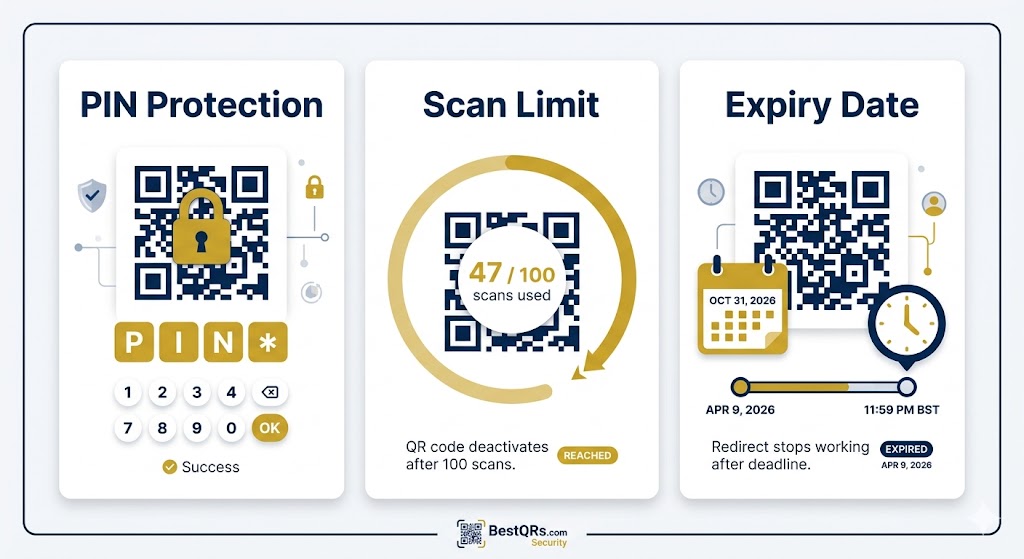
🔐 PIN Protection
Set a 4-digit PIN on any QR code. Scanners are shown a PIN entry screen before being redirected. Once verified, the session is saved in the browser — users don't need to re-enter the PIN on the same device during the same session.
User Scans
The code is scanned as normal on any device.
PIN Screen
A mobile-friendly PIN pad appears. Wrong PIN shows a clear error message.
Access Granted
Correct PIN redirects instantly. Session is stored for repeat scans.
PIN is ideal for: internal staff resources (print on a poster, only staff know the PIN), members-only content, age-gated promotions, or event check-in pages where you control distribution. Avoid using PIN for public marketing campaigns — it creates friction and reduces conversion rates.
🔢 Scan Limits
Set a maximum number of times a QR code can be scanned. The moment the limit is reached, the code deactivates and shows a friendly "limit reached" page. Counts are tracked in real-time using atomic Redis operations — concurrent scans won't push you over.
| Use Case | Suggested Limit | Why It Works |
|---|---|---|
| First 100 customers giveaway | 100 |
Automatically closes the offer when stock runs out |
| Event with 500 tickets sold | 500 |
Prevents ticket forwarding and over-entry |
| Single-access staff document | 1 |
View-once link — deactivates immediately after first scan |
| Beta tester group (50 people) | 50 |
Limits access without needing a login system |
| Flash sale (no limit preference) | Leave blank | No limit — use expiry date instead for time-based offers |
INCR (atomic increment), which is race-condition-safe even under simultaneous scans. If Redis is unavailable, the system falls back to the database count so your limit is never silently bypassed.
⏰ Expiry Dates
Set a specific date and time at which a QR code automatically stops working. After expiry, scanners see a friendly "This QR code has expired" page. Your code remains in the dashboard and can be reactivated at any time by removing or extending the expiry date.
Set Date & Time
Choose any future datetime, precise to the minute, directly in the designer.
Auto-Deactivates
No manual action needed. The interceptor checks expiry on every single scan in real-time.
Reactivate Anytime
Edit the link to remove or push back the expiry — code is live again immediately.
Restrictions are additive — stack them for sophisticated campaigns. Example flash sale: Expiry (offer ends Sunday midnight) + Scan limit (first 200 only) + Smart Rule (mobile → app download, desktop → web purchase). One QR code, printed on one flyer, handles all of this automatically with zero ongoing effort.
🗂️ The Link Manager
Your command centre for all QR codes in one table. Search by label or URL, monitor scan counts and status at a glance, rename labels inline without a page reload, and download any selection as a ZIP — including the rules summary for each link right in the table.
More Than URLs
A QR code can encode much more than a web link. BestQRs can also host files for you, generate contact cards, and produce static codes for Wi-Fi, SMS, email, and WhatsApp — all from the same designer.
📎 Hosted File QRs
Upload a PDF, image, audio file, or any document and BestQRs will host it for you at a short URL. The QR points to /f/<slug>/ — when scanned, the file is served directly with browser caching, edge delivery, and no extra hop. Replace the file at any time without changing the QR code.
Menus & Documents
Replace the menu PDF without reprinting table tents. New version goes live the moment you save.
Images & Plans
Floor plans, product photos, schematics — perfect for property listings, retail, and site signage.
Audio Tours
Museums, galleries, and trails — host MP3s and let visitors tap to listen on their own device.
📇 vCard & Digital Business Cards
Two distinct ways to put your contact details behind a QR code, depending on whether you want a raw download or a polished landing page.
vCard QR (Static)
Encodes your contact details directly into the QR code itself. Scanning prompts the phone to add you to its address book — no internet required after the scan.
- Name, phone, email, organization, title, website
- Encoded in the QR — no server roundtrip
- Best for business cards, badges, signage
- Slightly larger code than a URL — keep contact fields concise
Digital Business Card Pro+
A hosted micro-landing page at /card/<slug>/ with your photo, headline, social links, and a one-tap "Save to Contacts" button that downloads a vCard 3.0 file.
- Branded landing page with your photo and bio
- Multiple links (LinkedIn, calendar, portfolio, etc.)
- Edit anytime — printed QR stays valid
- Scan analytics tied to a normal dynamic Link
Choose vCard QR if your details are stable and you want offline-friendly scanning (events, badges). Choose a Digital Business Card if you want analytics, a public landing page, or the ability to update your title/role without reprinting. The DBC also wins anywhere brand presentation matters — recruiters, sales, real estate.
📶 Wi-Fi, SMS, Email & WhatsApp QRs
Four more static payload types — each encodes a structured action that the phone recognises and offers to perform automatically.
| Type | What It Does on Scan | Common Use Case |
|---|---|---|
| 📶 Wi-Fi | Phone offers to join the network using the SSID, password, and encryption type embedded in the code. | Cafés, AirBnBs, coworking spaces, conference greenrooms |
| 💬 SMS | Opens the messaging app pre-filled with your number and an optional message body. | "Text JOIN to opt in" campaigns, support shortcuts |
| Opens the mail app with To, Subject, and Body pre-populated. | RSVP forms, complaint hotlines, sales-lead intake | |
| Opens WhatsApp with a chat to your number pre-filled with an optional message. | "Message us on WhatsApp" support links, storefront ordering |
At Scale
Tools for generating, managing, and integrating large numbers of QR codes — built for teams running real campaigns.
📤 Bulk Upload
Upload a CSV and BestQRs will create one Link per row, generate the branded QR images, and stream the lot back as a downloadable ZIP. Ideal when you need to seed dozens or hundreds of codes at once — product packaging, name tags, asset tracking.
CSV Format
Each row becomes one QR code. Columns:
label— friendly name for the dashboardtarget_url— the destination URL- Optional design columns (color, bg_color, pattern)
What You Get
- One PNG per row, named after the label
- All Links appear in your Link Manager immediately
- Each is fully dynamic — destinations editable later
- ZIP download begins as soon as generation completes
🎯 Campaigns
A Campaign is a named group of Links you manage as one unit. Pause or resume the entire batch with a single click, schedule them to auto-deactivate on a date, or download the whole set as a ZIP. Perfect for time-bound promotions, conference batches, or seasonal pushes.
One-Click Pause
Toggle every code in the campaign on or off. Scanners see a friendly "paused" page until you resume.
Scheduled Pause/Resume
Set a deactivate-at and reactivate-at datetime. The campaign scheduler runs every minute and switches the campaign automatically.
ZIP Download
Grab the full batch of branded PNGs anytime. Re-export after design tweaks without recreating the campaign.
📧 Scheduled Reports
Get a recurring email digest of scan activity across your dynamic QR codes instead of checking the dashboard manually. Create as many reports as you need from the Reports page, each with its own name, cadence, and recipients.
Daily, Weekly, or Monthly
Pick a cadence per report. The scheduler checks every minute and sends as soon as a report's interval has elapsed since its last send.
Choose Which QR Codes
Every dynamic QR code is included by default. Uncheck any you want to leave out — new codes you create later are still added automatically.
Multiple Recipients
Send to more than one address by separating them with commas — handy for looping in a whole team or client.
👥 Teams & Invites
Every account has an Organization. Invite teammates by email and they'll get a link to create their account and join. Members share Links, Campaigns, and storage — but only Admins can change billing, invite or remove members, and manage API keys.
| Role | Can Do | Cannot Do |
|---|---|---|
| Admin | Everything — billing, invites, API keys, delete the org | — |
| Member | Create / edit / delete Links and Campaigns; view all analytics | Manage billing, invite / remove members, generate API keys |
🔔 Scan Webhooks
Set a Webhook URL on your Organization and BestQRs will POST a JSON payload to it after every scan, once geo and device data have been resolved. Drop scans straight into your CRM, marketing automation, or Slack channel.
POST https://your-server.example/qr-events
Content-Type: application/json

{
  "event":         "qr.scan",
  "link_slug":     "abc12345",
  "label":         "Spring Flyer",
  "target_url":    "https://example.com/spring",
  "timestamp":     "2025-04-12T14:32:01Z",
  "country":       "GB",
  "city":          "London",
  "device_type":   "iphone",
  "campaign_source": "qr"
}
Webhook delivery uses exponential backoff (5 retries, 10 s → 5 min) so transient outages on your side won't drop events. A request is considered delivered on any 2xx response.
REST API
Programmatic access to everything you can do in the dashboard — create QR codes, retrieve scan analytics, and run bulk operations from your own server, app, or CI pipeline.
🔑 Authentication & API Keys
Every request must include an X-API-KEY header. Keys are organization-scoped, revocable, and shown only once at creation — store them somewhere safe before navigating away.
Generate
From Account Settings → API Keys, click "Generate Key" and give it a memorable name.
Copy Once
The full key appears exactly once. Only the 8-character prefix is stored — we cannot recover it later.
Send Header
Include X-API-KEY: <your-key> on every request to /api/v1/.
🛠️ Endpoints
All endpoints live under /api/v1/qr/ and are scoped to the organization the API key belongs to. Full interactive reference: Swagger UI · ReDoc.
| Method | Path | What It Does |
|---|---|---|
GET |
/api/v1/qr/ |
List every QR code belonging to your organization (most recent first). |
POST |
/api/v1/qr/ |
Create a single dynamic QR. Returns the new Link including qr_image_url and short_url. |
GET |
/api/v1/qr/{id}/ |
Fetch a single QR by UUID. |
DELETE |
/api/v1/qr/{id}/ |
Delete a QR and purge all associated cache keys. |
POST |
/api/v1/qr/bulk/ |
Create 1–500 codes in one request. ≤10 returns 201 synchronously; larger batches return 202 and generate images in the background. |
GET |
/api/v1/qr/{slug}/stats/ |
Aggregated scan analytics: total scans, top countries / cities, recent scans, source & device breakdowns. |
💡 Quick Examples
Create a QR code
curl -X POST https://bestqrs.com/api/v1/qr/ \
  -H "X-API-KEY: $BESTQRS_API_KEY" \
  -H "Content-Type: application/json" \
  -d '{
    "label":      "Spring Flyer",
    "target_url": "https://example.com/spring",
    "color":      "#0d2b55",
    "bg_color":   "#ffffff",
    "pattern":    "rounded"
  }'
Fetch scan analytics
curl https://bestqrs.com/api/v1/qr/abc12345/stats/ \
  -H "X-API-KEY: $BESTQRS_API_KEY"
Bulk-create 200 codes
curl -X POST https://bestqrs.com/api/v1/qr/bulk/ \
  -H "X-API-KEY: $BESTQRS_API_KEY" \
  -H "Content-Type: application/json" \
  -d @batch.json
# returns 202 Accepted with the new IDs;
# QR images generate in the background.Create QR codes via the API at print time, then receive scan events through your Organization Webhook. You get end-to-end automation: generate codes from your inventory system, and pipe scan analytics straight back into the same place — no dashboard required.
📊 Rate Limits & Quotas
5,000 / hour
Per organization across all keys. Exceeding the limit returns 429 Too Many Requests.
500 per bulk call
Maximum items per /qr/bulk/ request. Split larger jobs into multiple calls.
Plan limits apply
Dynamic-link, file, and storage limits from your plan are enforced on API creates the same as in the UI.